
How to Keep Your Emails Under Control for a More Productive Day
besufai.pro >> Email Management>>Productivity>> How to Keep Your Emails Under Control for a More Productive Day
How to Keep Your Emails Under Control for a More Productive Day
In today’s digital world, email remains an essential communication tool, but it can quickly become overwhelming. A cluttered inbox not only wastes time but also causes unnecessary stress and reduces productivity. Fortunately, with a few practical strategies, you can regain control over your emails and make your daily workflow smoother and more efficient.
Why Keeping Emails Under Control Matters
An overflowing inbox can be distracting and make it difficult to prioritize tasks. When emails pile up, important messages might get lost, deadlines can be missed, and your overall work performance can suffer. By keeping your emails organized and manageable, you can improve your focus, respond faster, and feel less stressed.
—
Step 1: Set Specific Times to Check Your Email
Rather than constantly monitoring your inbox, set aside designated times during the day to check and respond to emails. This approach helps you avoid interruptions and maintains your concentration on other tasks.
– Morning check: Spend 20-30 minutes clearing urgent messages.
– Midday check: Review and respond to emails that require attention.
– End of day check: Wrap up any remaining correspondence or plan for the next day.
—
Step 2: Unsubscribe Ruthlessly
Many emails you receive may not be essential, such as newsletters or promotional content you no longer find useful. Spending time deleting these messages daily adds up.
– Identify emails you don’t read or find helpful.
– Use the unsubscribe link typically located at the bottom of these emails.
– Consider tools like Unroll.Me or built-in email filters to automate this process.
—
Step 3: Create Folders and Labels for Organization
Organizing your emails into folders or using labels helps keep your inbox tidy and makes it easier to find messages when needed.
– Create basic categories like Work, Personal, Bills, Follow-Up, and Archive.
– Use labels or tags if your email platform supports them.
– Move emails to their respective folders immediately after reading or responding.
—
Step 4: Use Filters and Rules
Take advantage of automation by setting up filters or rules in your email client to automatically sort incoming emails.
– Automatically send newsletters or promotions to a Promotions folder.
– Flag emails from important contacts for quick access.
– Filter emails with specific keywords to relevant folders.
—
Step 5: Adopt the “Two-Minute Rule”
If an email requires a simple response or action that will take less than two minutes, handle it right away. This prevents small tasks from piling up and keeps your inbox manageable.
—
Step 6: Archive or Delete Regularly
Don’t let old emails linger indefinitely. Make it a habit to archive messages you want to keep but don’t need to see daily, or delete those that no longer hold value.
– Set a weekly or monthly reminder to clean your inbox.
– Archive emails you might want to reference later.
– Permanently delete spam, outdated promotions, or irrelevant messages.
—
Step 7: Use Email Templates for Common Responses
If you often send similar replies, save time by creating email templates.
– Draft standard responses for frequently asked questions.
– Customize templates quickly before sending.
– Many email platforms and plugins support template creation.
—
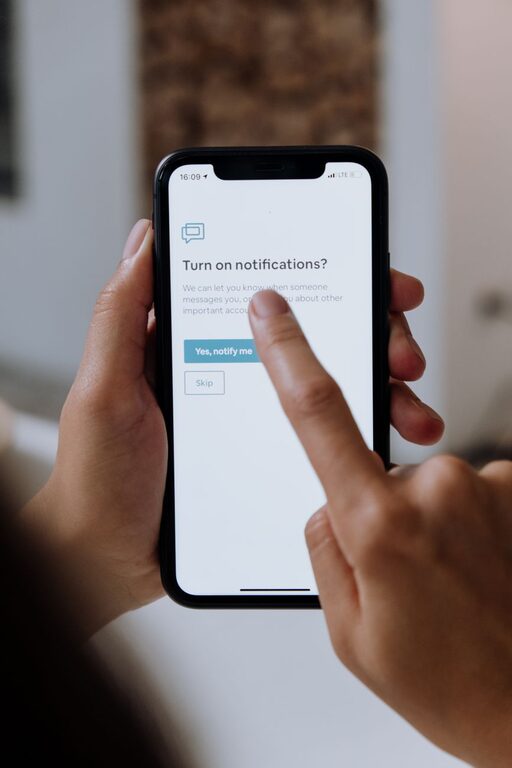
Step 8: Turn Off Non-Essential Notifications
Email notifications can be distracting and interrupt your focus.
– Disable push notifications on your phone or desktop.
– Allow notifications only for emails from key contacts.
– Rely on scheduled email checks instead.
—
Step 9: Maintain Inbox Zero or a Manageable Inbox
Aim to keep your inbox empty or close to it at the end of the day by processing each email.
– Respond, delegate, defer, or delete emails promptly.
– Use a task manager or calendar to handle emails that require follow-up.
– Keeping inbox zero can boost your sense of control and reduce stress.
—
Tools and Apps to Help Manage Your Email
Several tools can assist you in keeping your inbox organized:
– Email clients like Outlook, Gmail, or Apple Mail offer built-in filters, labels, and scheduling.
– Third-party tools such as Clean Email, SaneBox, or Spark provide additional automation.
– Productivity apps like Todoist or Trello can help manage email-related tasks.
—
Final Thoughts
Email management is not about checking your inbox constantly but about handling emails efficiently and purposefully. By setting boundaries, organizing your inbox, using automation, and maintaining consistent habits, you can reduce email overload and enjoy a more productive and less stressful day. Start with a couple of these steps today, and you’ll likely notice a positive difference in how you manage your communications.
Related Post